MiniMax H3 Video to Video

Transform Existing Video with MiniMax H3

MiniMax H3 video-to-video uses an existing video as a motion, performance, camera, timing, editing, or continuation reference. The source clip guides a new generation but does not necessarily mean every frame is directly transformed.

Input
Video + prompt
Motion
Performance / timing
Camera
Path / shot rhythm
Output
New generated video
Video-to-video workflow options

The source clip may act as a motion or camera reference, serve as footage being edited, or provide the starting point for a continuation. State its role explicitly so the model knows what to preserve and what to change.

10 Free Credits Daily · Up to 30 Free Credits
Primary reference image0/1
Secondary reference image (optional)0/1
Reference images
0/9 total

First 5 images are included; each additional image uses 3 credits.

Reference videos
0/3

MP4 / MOV / MKV, up to 3 files, 50MB each

Reference audio
0/3

MP3 / WAV / AAC / FLAC, up to 3 files, 15MB each

0/2500
768pRecommended

Recommended for testing prompts and first drafts.

2K output is available on the 2K tier only.

5s
Est. cost: ~30 creditsBalance: credits

Checking your account…

OutputVideo
History
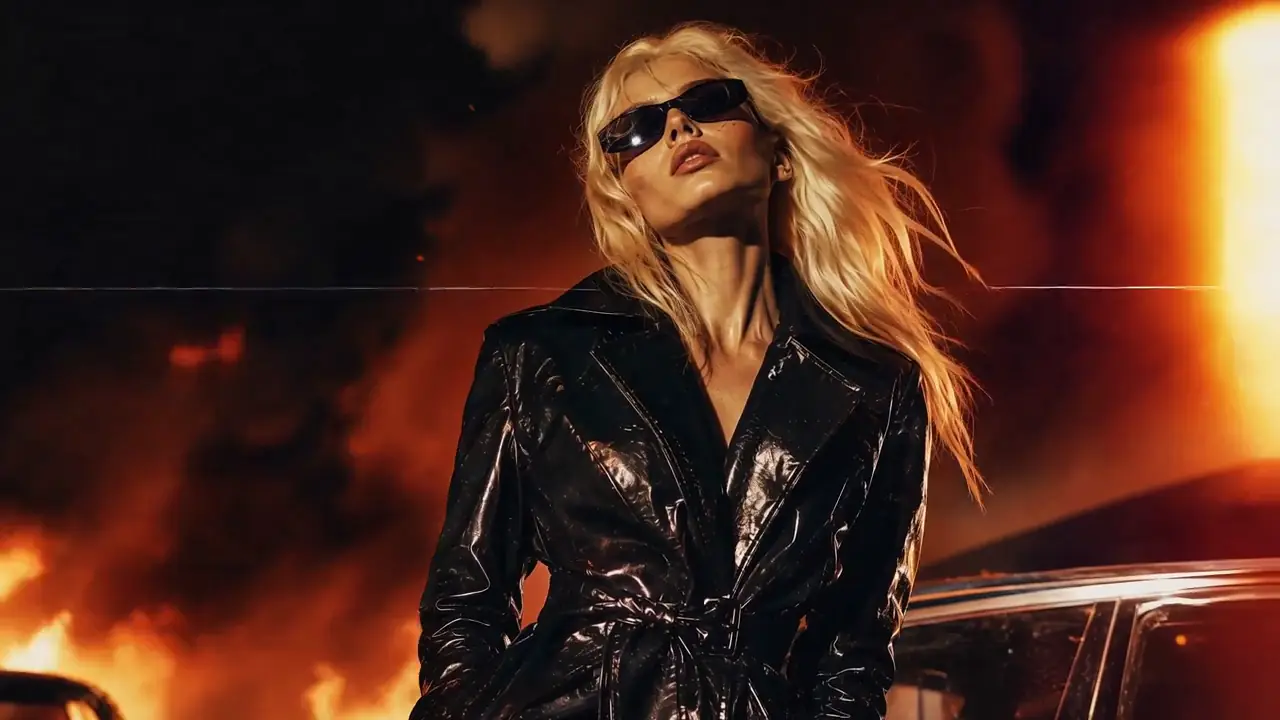
MiniMax H3 AI video: Cyber-Grunge Fashion FilmMiniMax H3 Reference to Video sample

See What MiniMax H3 Can Create

Featured real MiniMax H3 outputs — hover to preview, tap to view the prompt.

Vintage Binocular Brand Film
Featured Example

Vintage Binocular Brand Film

Reference to Video · Brand Films & Cinematic Content

Epic Space Opera Teaser
Featured Example

Epic Space Opera Teaser

First & Last Frame · Brand Films & Cinematic Content

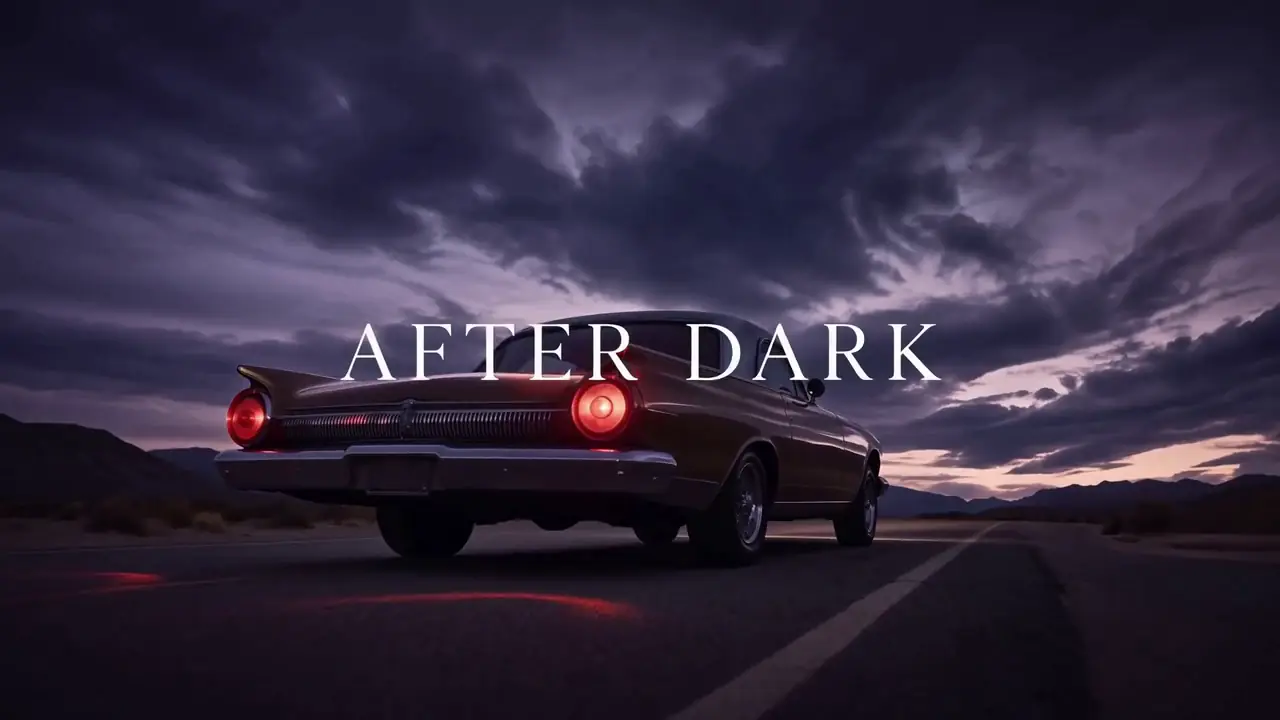
Desert Fashion Campaign
Featured Example

Desert Fashion Campaign

Reference to Video · Brand Films & Cinematic Content

Cyber-Grunge Fashion Film
Featured Example

Cyber-Grunge Fashion Film

Reference to Video · Brand Films & Cinematic Content

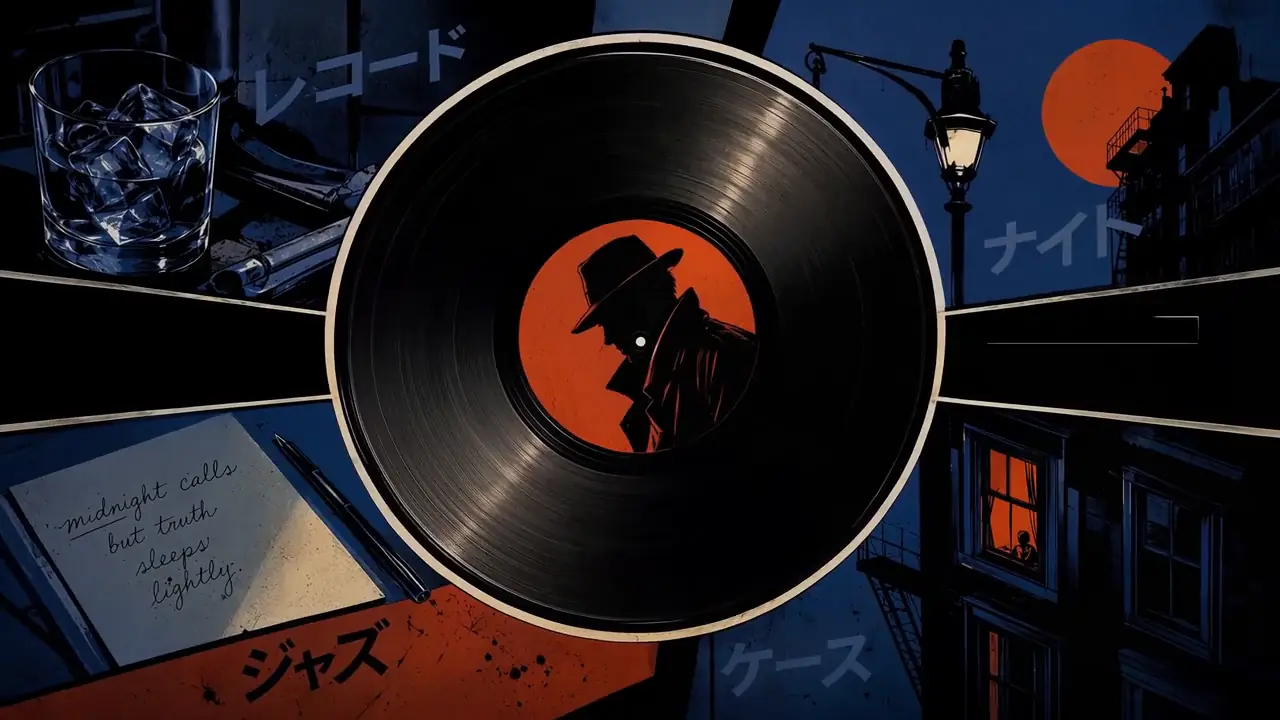
Retro Anime Crime Title Sequence
Featured Example

Retro Anime Crime Title Sequence

Reference to Video · Visual Concepts & Motion Design

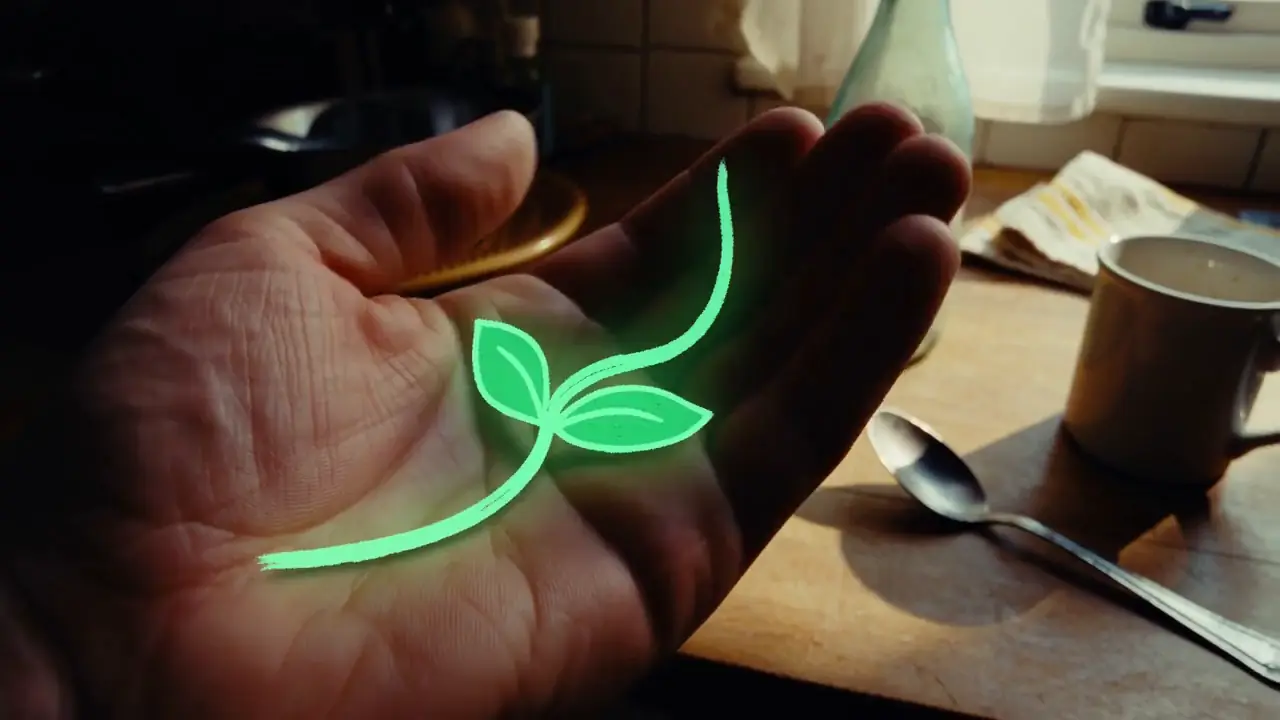
Hand-Drawn Kitchen Creature
Featured Example

Hand-Drawn Kitchen Creature

Text to Video · Visual Concepts & Motion Design

Neon Laundromat Encounter
Featured Example

Neon Laundromat Encounter

Text to Video · Visual Concepts & Motion Design

Cyber-Grunge Rap Music Video
Featured Example

Cyber-Grunge Rap Music Video

Reference to Video · Visual Concepts & Motion Design

Green-Screen to Fairytale Composite
Featured Example

Green-Screen to Fairytale Composite

Reference to Video · Visual Concepts & Motion Design

Animated Gallery Poster
Featured Example

Animated Gallery Poster

First & Last Frame · Visual Concepts & Motion Design

Snowy Bamboo Wuxia Mystery
Featured Example

Snowy Bamboo Wuxia Mystery

Reference to Video · AI-Native Storytelling

Futuristic Eyewear Campaign
Featured Example

Futuristic Eyewear Campaign

Reference to Video · Product & E-Commerce Marketing

Interactive Game Equipment UI
Featured Example

Interactive Game Equipment UI

Reference to Video · Digital Experiences & Game Concepts

Automotive Website UI Animation
Featured Example

Automotive Website UI Animation

First & Last Frame · Digital Experiences & Game Concepts

Rotating Product Page Reveal
Featured Example

Rotating Product Page Reveal

First & Last Frame · Digital Experiences & Game Concepts

What Is MiniMax H3 Video-to-Video?

MiniMax H3 video-to-video describes workflows where an existing video is central to the result. H3 can use that clip for body motion, acting performance, camera movement, cuts, rhythm, timing, editing context, or continuation.

The source video’s role determines the workflow. If the clip only teaches H3 how something should move, it is motion or temporal reference. If the original footage itself must remain recognizable while selected elements change, it is video editing.

Source video ≠ automatically video editing.

What Do You Want H3 to Do with the Source Video?

What H3 should do with the source video
Your GoalBest InterpretationWhat H3 Should Preserve
Transfer body movement to a new characterMotion transfer / reference generationMotion and timing
Copy camera orbit, tracking, or handheld behaviorCamera referenceCamera path and shot rhythm
Replace the person but keep the actionCharacter replacementMotion, camera, timing
Change clothing, props, lighting, or background in the existing clipVideo editingMost non-target footage
Modify dialogue or performance while retaining the sceneVideo editingScene, camera, identity as requested
Generate what happens after the source clipVideo continuationEnding state and temporal continuity

Do not start by asking “Is this V2V?” Start by deciding what the source video is supposed to contribute to the result.

Motion Transfer vs Video Editing: What’s the Difference?

Motion transfer uses the source video as behavioral or temporal reference. The final video can keep the movement, performance, camera path, or timing while changing the character, environment, or visual style.

Video editing treats the existing footage itself as the object being modified. The target is usually to preserve most of the source clip while changing only the elements requested in the prompt.

If the source teaches the new video how to move, think reference. If the source itself must remain and be modified, think editing.

When Is Video Continuation the Better Workflow?

Use continuation when the new generation should begin from the state reached at the end of the source clip and extend the action forward in time.

A continuation prompt should describe what happens next rather than repeatedly describing the earlier part of the source. Focus on the next action, the camera transition, scene continuity, sound continuity, and the target ending state.

Editing changes the source. Motion transfer borrows from the source. Continuation extends the source.

What Should H3 Take From Your Source Video?

MiniMax3.org practical framework

Source information and its best role
Source InformationBest Role
Body movementMotion reference
Gesture timingPerformance reference
Facial performancePerformance reference
Camera trackingCamera reference
Orbit / push / pull movementCamera reference
CutsTemporal structure
Shot durationTiming reference
Rhythm / pacingTemporal reference
Existing scene and subjectsVideo editing source
Final state of the clipContinuation starting point
Existing soundtrackAudio reuse when required
Character appearance alonePrefer a clear image reference when available

A source video does not need to control every property of the result. Stronger prompts tell H3 exactly which parts of the source matter.

The MiniMax3.org Preserve / Transfer / Change Method

MiniMax3.org practical framework

Before writing a video-to-video prompt, separate the request into three decisions.

1. Preserve — What Must Stay?

List the source properties that should remain stable.

Examples: body motion, camera path, timing, shot order, environment, facial identity, original audio, object placement.

Preserve the original body movement, camera path, and shot timing.

2. Transfer — What Should Be Reused?

Define which source behavior should move into the new result.

Examples: movement, acting performance, gesture timing, camera behavior, pacing, voice delivery, editing rhythm.

Transfer the performer’s movement and the slow tracking camera from Video 1 to the replacement character.

3. Change — What Must Become Different?

State exactly what the final video should change.

Examples: character, clothing, environment, lighting, props, dialogue, visual style, product.

Replace the original performer with the character from Picture 1 and change the location to a rainy neon street.
Source role → Preserve → Transfer → Change

MiniMax H3 Video-to-Video Prompt Examples

Motion Transfer Prompt

Starter

Video 1 provides the full body movement, acting rhythm, and camera timing. Preserve the movement sequence and overall shot timing. Picture 1 defines the replacement character’s facial identity, hairstyle, and clothing. Transfer the performance from Video 1 to the character from Picture 1 while generating a new cinematic night-street environment. Keep the body mechanics natural and maintain consistent character identity throughout the shot.

Camera Transfer Prompt

Starter

Use Video 1 only as reference for camera movement, shot timing, and pacing. Preserve the tracking path, camera speed, and timing, but do not preserve the original subject or environment. Generate a new scene featuring a woman in a black coat walking through a rainy neon train station. Follow the camera behavior from Video 1 while allowing the new character and location to be generated naturally.

Targeted Video Editing Prompt

Starter

Edit Video 1. Preserve the original subject identity, body movement, camera framing, timing, background, and overall composition. Change only the subject’s blue jacket to a deep red leather jacket. Keep all other visible elements, motion, lighting relationships, and scene timing as close to the source as possible.

Character Replacement Prompt

Starter

Video 1 provides the body motion, camera movement, timing, and scene structure. Picture 1 defines the replacement character’s facial identity, hairstyle, body appearance, and clothing. Replace the original person with the character from Picture 1 while preserving the source movement sequence, camera path, and shot timing. Maintain consistent identity throughout the full clip.

Is Your Source Video Good for Motion Transfer?

MiniMax3.org practical checklist

Source video readiness for motion transfer
CheckBetter SourceHigher-Risk Source
Subject visibilityFull moving body is clearly visibleKey body parts are frequently cropped
Motion clarityActions and contact points are distinctHeavy blur or ambiguous movement
OcclusionHands and feet remain visibleLimbs disappear behind objects
Camera behaviorCamera path is easy to identifyErratic movement with no clear pattern
Shot structureOne coherent action or shot sequenceMany unrelated cuts
Subject separationCharacter is visually separated from backgroundSubject blends into background
Action completionMovement has a clear start and finishClip cuts off mid-action
A good motion-reference clip makes the movement easy to observe.

How to Replace a Character Without Losing the Source Motion

For character replacement, separate appearance from movement. Let the video define how the character moves and let a clear image reference define who the replacement character is.

Video 1 = motion + camera + timing

Picture 1 = identity + appearance

Prompt = relationship between the two

Direct Answer: Use the video for behavior and the image for identity.

If the source character’s appearance is not important, do not ask H3 to preserve it at the same time that you are asking for a replacement character.

Can MiniMax H3 Transfer Camera Movement?

Yes. A source video can provide camera behavior such as tracking, push-in, pull-back, orbiting motion, handheld movement, cuts, or shot rhythm without requiring the original character or environment to remain.

In the prompt, explicitly state that the source video’s camera path and timing should be preserved while the subject or scene changes.

MiniMax3.org Edit Locality

MiniMax3.org benchmark method

A good targeted video edit should change the requested element while preserving unrelated parts of the source.

Edit Locality = Preserved non-target requirements ÷ Total non-target requirements

Example

Requested edit: Blue jacket → red jacket

Check:

✓ Face unchanged

✓ Body movement unchanged

✓ Camera unchanged

✓ Background unchanged

✓ Timing unchanged

✓ Audio unchanged

Do not publish a numerical H3 score until MiniMax3.org has run and documented a first-party test.

MiniMax3.org methodology only — no first-party H3 score published yet.

MiniMax3.org Motion Transfer Fidelity

MiniMax3.org benchmark method

Instead of judging motion transfer only by overall visual quality, break the source action into observable checkpoints and test whether the generated result reproduces them.

Example

Source motion checkpoints:

  1. Step left
  2. Raise right arm
  3. Turn 180 degrees
  4. Crouch
  5. Finish in a fixed pose

Motion Checkpoint Completion = Correctly reproduced checkpoints ÷ Total checkpoints

This metric evaluates instruction and motion adherence rather than visual polish alone.

MiniMax3.org methodology only — no first-party H3 score published yet.

Video-to-Video vs Reference-to-Video vs Image-to-Video

When to choose each workflow
WorkflowChoose It When
Video-to-VideoOne existing source clip is the center of the transformation
Reference-to-VideoSeveral image, video, and audio references each have different jobs
Image-to-VideoA supplied image must anchor the opening or ending frame

Use Video-to-Video when the question is “What should happen to this clip?”

Use Reference-to-Video when the question is “How should these different references work together?”

Use Image-to-Video when the question is “How should this still image move?”

MiniMax H3 Video Output

MiniMax H3 is a multimodal audiovisual video model that understands text, image, video, and audio context. Current H3 generation supports 4–15 second output at 768P or 2K with native stereo sound.

The source video’s role can vary across reference generation, editing, motion transfer, camera reference, and continuation-style workflows.

7 Common MiniMax H3 Video-to-Video Mistakes

  1. Not telling H3 what the source video is for.
  2. Asking H3 to preserve and replace the same property at the same time.
  3. Treating motion transfer and video editing as the same workflow.
  4. Using the source video to define precise character identity when a clear image reference would be better.
  5. Asking for major changes to character, camera, scene, timing, and dialogue in one uncontrolled prompt.
  6. Using a source clip where the important motion is hidden by blur, cropping, or occlusion.
  7. Judging the result only by visual quality instead of checking whether the requested motion or edit was preserved.

MiniMax H3 Video-to-Video Troubleshooting

Video-to-video troubleshooting
ProblemTry This
Motion is not preservedExplicitly assign Video 1 as the motion reference
Character identity driftsAdd one clear image reference for identity
Camera changes too muchState that the source camera path and timing must remain
Too much of the original video changesRewrite the request as a targeted edit and list what must stay
Output copies the source too closelyClarify which properties should change and which are only weak references
Motion looks chaoticUse a cleaner source clip with fewer cuts and clearer body visibility
Edit changes unrelated objectsExplicitly list the non-target elements that must remain unchanged
Character replacement changes timingLock source movement, camera, and temporal structure
Voice changes unexpectedlyExplicitly define whether source audio should be preserved, replaced, or ignored

What Can You Do with MiniMax H3 Video-to-Video?

Motion Transfer

Transfer body movement, acting performance, or gesture timing from an existing clip to a newly generated character or scene.

Character Replacement

Use the source clip for movement and camera behavior while a reference image defines the replacement character.

Targeted Video Editing

Modify selected elements of existing footage while preserving the parts that should remain unchanged.

Camera Transfer

Reuse tracking, orbiting, handheld movement, push-ins, cuts, or shot rhythm while generating a different subject or environment.

MiniMax H3 Video-to-Video FAQ

Does MiniMax H3 support video-to-video?

Yes. MiniMax describes H3 as supporting generalized multimodal reference and editing and specifically highlights V2V motion transfer. A source video can provide motion, camera behavior, timing, editing context, or continuation context.

What is MiniMax H3 video-to-video?

MiniMax H3 video-to-video is a broad user-facing term for workflows where an existing video is central to the result. The source can guide motion or camera behavior, act as the footage being edited, or provide temporal context for continuation.

What is MiniMax H3 motion transfer?

Motion transfer uses a source video to guide movement, acting performance, gesture timing, camera behavior, or temporal structure in a new generation.

Is motion transfer the same as video editing?

No. Motion transfer uses the source mainly as behavioral or temporal reference. Video editing modifies the source footage itself while preserving the parts that should remain unchanged.

Can MiniMax H3 replace a character in a video?

H3 can combine source-video motion or camera information with image references that define another character’s identity and appearance. The prompt should explicitly assign those roles.

Can MiniMax H3 copy camera movement from a video?

Yes. A reference video can provide camera movement, cuts, rhythm, and temporal structure while allowing the subject and environment to change.

How should I prompt MiniMax H3 video-to-video?

First state what the source video is for. Then separate the instruction into what must be preserved, what should be transferred, and what should change.

Should I use Video-to-Video or Reference-to-Video?

Use Video-to-Video when one source clip is the center of the transformation. Use Reference-to-Video when several images, videos, and audio references each need different control roles.

Should I use Video-to-Video or Image-to-Video?

Use Video-to-Video when you already have footage that should influence the result. Use Image-to-Video when a supplied still image should anchor the generated video’s opening or ending frame.

Does MiniMax H3 generate audio?

Yes. MiniMax H3 is an audiovisual generation model with native stereo sound.

How long can MiniMax H3 videos be?

Current MiniMax H3 generation supports output durations from 4 to 15 seconds.

Does MiniMax H3 support 2K?

Yes. Current MiniMax H3 generation supports 768P and 2K output.

Transform Your Source Video with MiniMax H3

Start with one source clip and decide what H3 should preserve, transfer, or change. Use the video for motion, camera behavior, editing context, or temporal structure, then describe the target result clearly.

10 free credits per daily check-in · Up to 30 total

Data References